
Short answer: when a laser printer prints dirty pages, the cause is almost always one of five things: toner leaking from the cartridge, a contaminated or worn drum or charge roller, toner that has lost its charge, a fuser that no longer fixes toner to the paper, or toner sitting in the paper path. The look of the defect and the spacing between repeating marks tell you which one it is, usually in less than ten minutes.
What “dirty pages” look like: spots, dots, gray fog, toner dust
“Dirty pages” covers several different defects, and each one points to a different part of the printer. Before you buy a new cartridge, look closely at a printed page and name what you see:
- Spots or dots that repeat down the page at the same distance.
- Gray background (also called fog or haze): a light tint over areas that should be white.
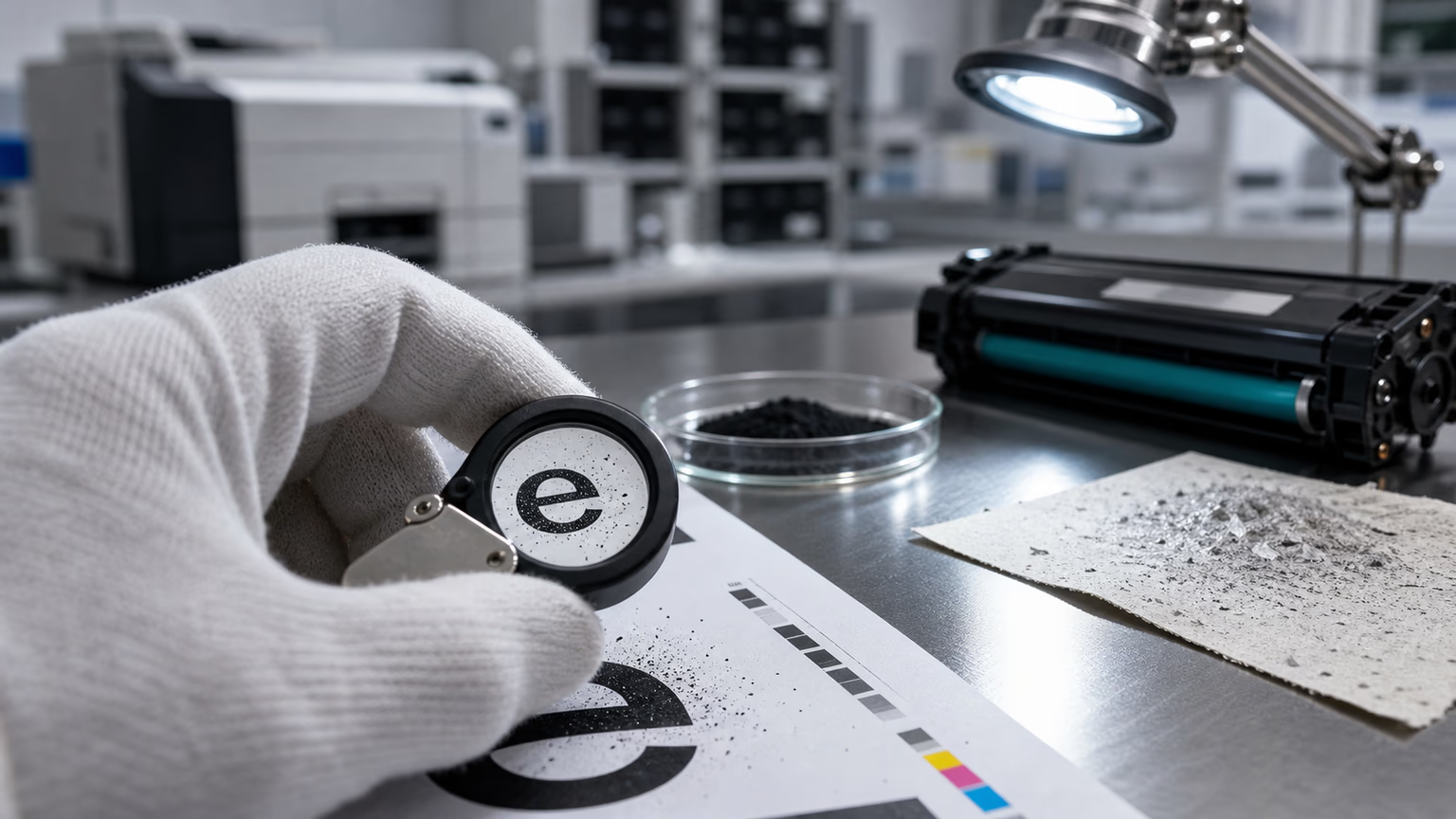
- Toner dust or clumps: random specks, sometimes heavier near one edge.
- Smudges or smears: toner that rubs off when you slide a finger across the print.
- Dirty back side: marks on the reverse of a page printed on one side only.
Most pages show more than one of these. Start with the strongest symptom and use the table below to narrow down the cause.
Dirty pages: symptom → likely cause → what to do
| Symptom | Likely cause | What to do |
|---|---|---|
| Spots or marks repeating at equal spacing down the page | A rotating part with a mark on it: drum, developer roller, charge roller or fuser roller | Measure the spacing and match it to the part (see the spacing chart) |
| Light gray haze over the whole page | Drum or charge roller no longer charging evenly; toner with weak or wrong charge; damp toner or paper | Try a known-good cartridge; check humidity and paper; replace worn drum or charge roller |
| Random toner dust, clumps or a dirty edge | Toner leaking from worn seals, a cracked hopper or an overfilled refill; full waste toner area | Inspect the cartridge seals; clean the cavity with a toner vacuum; replace the cartridge |
| Print smears or rubs off when you touch it | Fuser not melting toner fully: wrong paper setting, worn fuser, mismatched toner | Match the paper type setting; run the cleaning page; service the fuser |
| Dirty marks on the back of the page | Toner on the transfer roller or fuser pressure roller | Print several blank pages or a cleaning page; clean or replace the transfer roller |
| Dirt only after a new cartridge was installed | Shipping lock or seal not removed; incompatible or poor-quality toner | Recheck installation; swap in another cartridge from a different batch |
Use the table as a starting point. If a symptom appears together with lines or streaks, read our streak guide as well.
Repeating marks: the defect spacing chart
A mark that repeats at the same interval is the easiest defect to diagnose. Every roller in a laser printer turns in contact with the page or the image. If a roller has a scratch, a dent or a lump of toner stuck to it, it leaves a mark once per turn. The distance between marks is therefore the circumference of that roller.
Measure from the top of one mark to the top of the next, in millimeters. Then compare the number with the parts in your printer. You can calculate a part’s repeat yourself: diameter × 3.14. Many printer manufacturers also publish a repetitive defect ruler in their service manuals, which lists the exact repeat for each roller in a given engine.
Repeating marks: find the part by its spacing
| Part | How to find its repeat | Worked example |
|---|---|---|
| OPC drum | Largest repeat inside the cartridge area. Check the drum diameter or the service manual | A 24 mm drum repeats about every 75 mm (24 × 3.14) |
| Charge roller | Short repeat, usually well under half of the drum repeat | A 12 mm roller repeats about every 38 mm |
| Developer (magnetic) roller | Short-to-medium repeat inside the cartridge | A 16 mm roller repeats about every 50 mm |
| Fuser roller or sleeve | Often close to the drum repeat; marks may be glossy or smeared | A 25 mm fuser repeats about every 79 mm |
| Transfer roller | Marks usually appear on the back of the page | Measure on the back side of a printed page |
Worked examples are arithmetic illustrations, not values for a specific printer. Diameters vary by engine; many manufacturers publish a repetitive defect ruler in the service manual.
A practical rule: if the repeat matches the drum and the marks disappear when you install a different cartridge (on printers where the drum is part of the cartridge), the drum is damaged. If the marks stay with the printer, look at the fuser and the transfer roller. For a longer list of repeat distances and how service engineers use them, see our defect distance chart for repeating dots.
Toner leaking from the cartridge
A cartridge that leaks toner produces random dust, small clumps and, often, a heavy dirty band along one edge of the page. You will usually also find loose toner on the cartridge body or inside the printer.
Common reasons a cartridge leaks:
- Worn or damaged seals at the ends of the developer roller or the hopper.
- A cracked hopper after a drop during shipping or installation.
- Overfilling when a cartridge is refilled with more toner than it was designed to hold.
- A full waste toner area: when the waste chamber is full, used toner escapes back toward the drum and the page.
- A worn doctor (metering) blade that lets too much toner onto the developer roller.
What to do: switch the printer off, let it cool, remove the cartridge and check it over a sheet of paper. Clean loose toner from the cavity with a vacuum rated for toner, not a household vacuum. If the cartridge itself is leaking, replace it; cleaning only buys a few pages. Our article on toner leaking from the cartridge explains each failure mode in more depth.
Drum and charge roller contamination
The OPC drum is the light-sensitive cylinder that carries the image. Before each rotation, a charge roller gives it an even electrical charge. The laser then discharges the areas that should print, and toner sticks only there. When this charging becomes uneven, toner lands in the wrong places.
Signs that the drum or charge roller is the cause:
- Spots or marks that repeat at the drum or charge-roller interval.
- A gray haze that gets worse as the cartridge or drum unit ages.
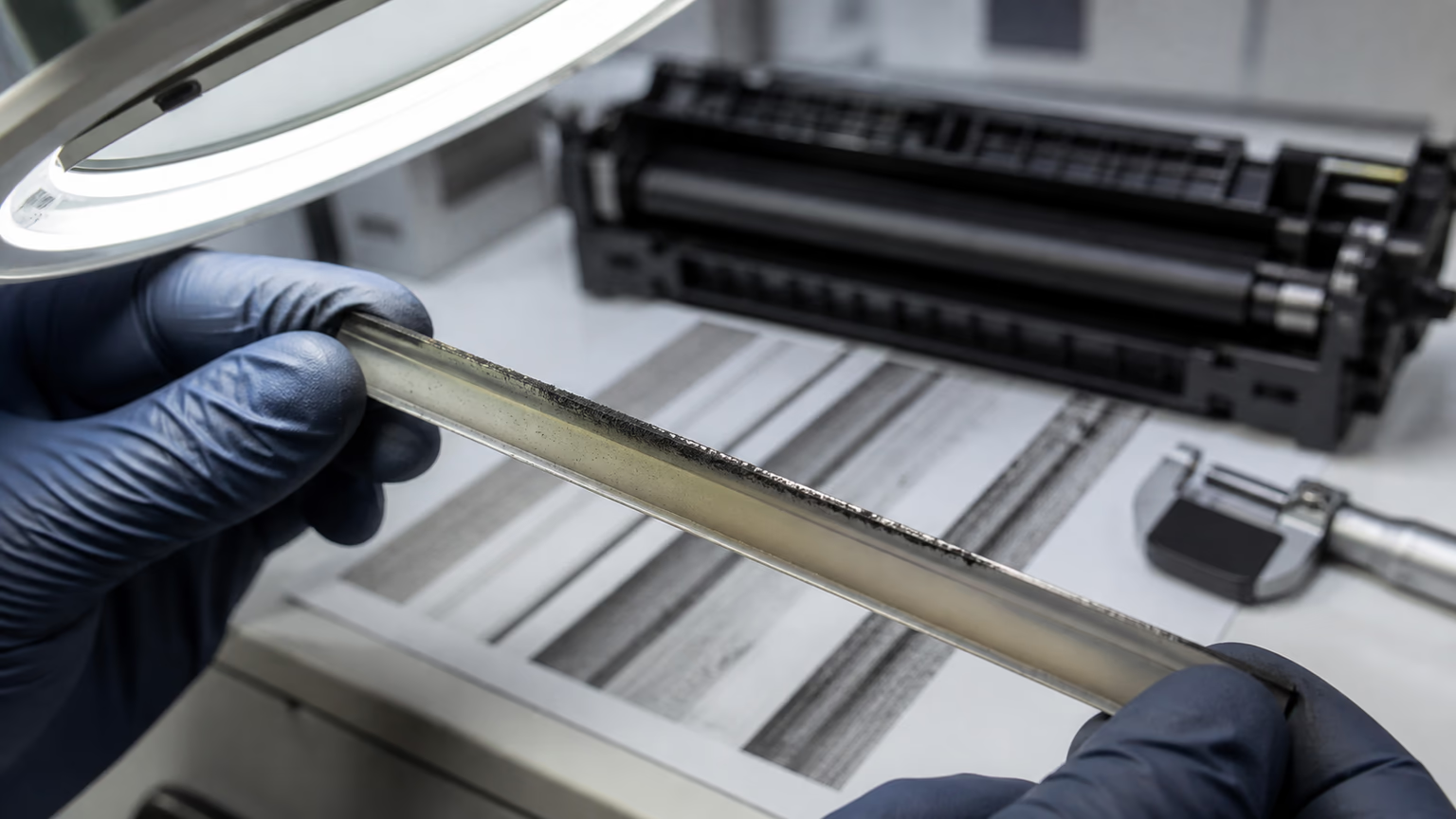
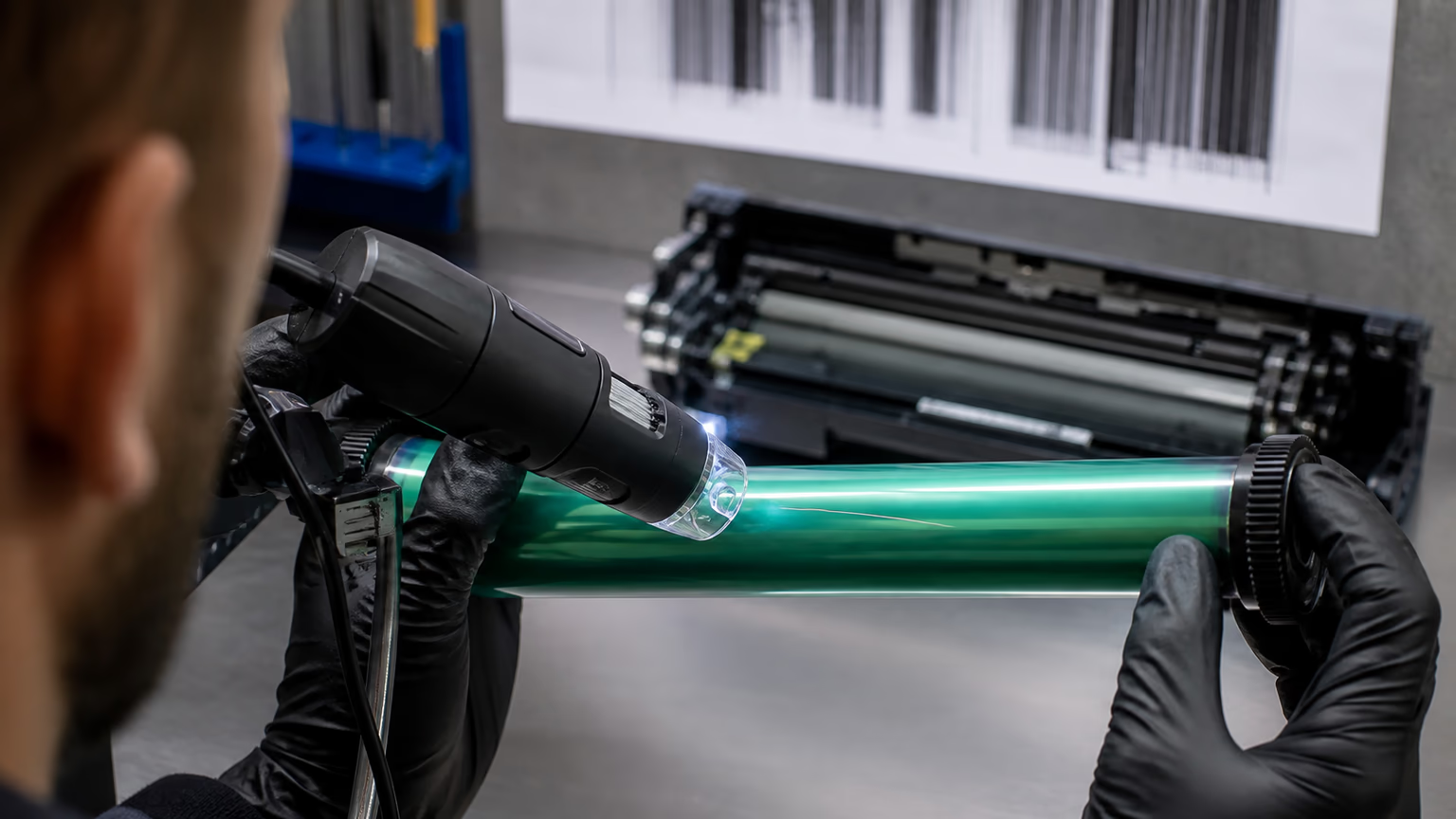
- Visible scratches, a matte worn band or a film on the drum surface when you inspect it under light.
- Dark specks on a charge roller that has picked up toner or paper dust.
Never touch the drum surface with bare fingers, and keep it out of strong light while it is outside the printer. On printers where the drum sits inside the toner cartridge, a new cartridge also gives you a new drum and charge roller. On printers with a separate drum unit, replace the drum unit when it reaches the end of its life or shows physical damage. If you see drum damage soon after changing toner, read about OPC drum damage after toner replacement.
Gray background: charge, humidity, toner quality
A light gray tint across the whole page is one of the most common complaints about laser printers. It happens when toner particles are attracted to areas of the drum that should stay clean. Three groups of causes account for most cases:
- Charging problems. A worn drum or a weak charge roller cannot hold the clean areas at the right voltage, so some toner drifts onto them.
- Toner charge. Toner must pick up a precise electrical charge to behave correctly. Toner that is old, damp, mixed with a different powder or poorly made can carry too little charge, and some particles end up on the background.
- Environment and paper. High humidity makes both toner and paper absorb moisture. Damp toner holds charge poorly and the gray background increases.
Mixing different toner powders during a refill is a frequent cause of sudden background in refilled cartridges, because the two powders can be designed for different charge levels. Storage conditions matter as well. Our article on background fog and humid storage covers this in detail, and toner scatter around text explains a closely related defect.
Fuser not fixing toner
The fuser melts toner and presses it into the paper fibers. If it does not do this fully, the print looks normal when it comes out but smears when you touch it, and loose toner gets dragged across the page and into the paper path. Over time this toner builds up on rollers and shows up as dirty marks on later pages.
Check these causes in order:
- Paper type setting. Heavy, glossy or label stock needs a heavier paper setting so the fuser runs hotter or slower.
- Damp paper. Moisture absorbs heat from the fuser. Open a fresh ream and try again.
- Worn fuser. A worn sleeve, roller or thermistor causes poor fixing and marks at the fuser interval.
- Toner that does not match the fuser. Toner melts in a defined temperature range. If it does not match the printer’s fuser temperature, it can smear or offset.
For the technical side of this defect, see toner smearing after fusing. Remember that the fuser runs very hot: switch the printer off and let it cool before you open that area.
When the cartridge is to blame, and when the printer is
The fastest way to split the problem is a swap test. Install a known-good cartridge, ideally from a different batch, and print the same diagnostic page.
- The defect disappears: the cause is in the cartridge you removed (leak, drum, charge roller, developer roller or toner).
- The defect stays: the cause is in the printer: fuser, transfer roller, paper path, or a separate drum unit that you did not change.
- The defect changes but does not disappear: loose toner is still in the printer. Clean it out and print a few blank pages before you judge.
We explain this logic for service teams in how to separate cartridge defects from printer maintenance problems.
Step-by-step fix
Work through these steps in order. Each one rules out a group of causes, so you will not replace parts that are still good.
- Print a diagnostic page. Print a page with text, a gray halftone block and a solid black area. Save it: you will compare the next prints against it.
- Check where the dirt is. Front side, back side, one edge, or the whole page? Back-side dirt points to the transfer or pressure roller, not the cartridge.
- Measure repeating marks. If marks repeat, measure the distance between them and match it to the part with the spacing chart.
- Run the cleaning cycle. Use the printer's cleaning page or fuser cleaning mode, then print two or three blank pages to pull loose toner out of the paper path.
- Inspect and swap the cartridge. Look for toner on the outside, worn seals or scratches on the drum. Install a known-good cartridge from another batch and print again.
- Check paper and room. Use dry paper from a sealed ream and the correct paper type setting. Very humid rooms make gray background worse.
A few safety points while you work:
- Switch the printer off and let the fuser cool before reaching inside.
- Do not use a household vacuum on toner. Fine toner can pass through ordinary filters, and the dust is hard to contain. Use a toner-rated vacuum or wipe small amounts with a dry cloth.
- Wash toner off skin and clothing with cold water. Hot water can set it.
How to prevent dirty pages
Most of the causes above build up slowly, so a few habits keep pages clean for longer:
- Store cartridges and paper properly. Keep them sealed, flat and away from heaters, windows and damp storerooms. Let cartridges reach room temperature before you install them, especially in winter.
- Do not shake hard or drop cartridges. Gentle rocking spreads the toner; hard knocks can crack the hopper or damage seals.
- Set the right paper type. The wrong setting is a common cause of poor fusing and smeared prints on heavy paper and labels.
- Watch the waste toner level. On printers with a separate waste toner container, replace it when the printer asks; do not try to empty and reuse it.
- Use cartridges with consistent toner. Stable particle size and charge from batch to batch is what keeps the background clean over the whole life of the cartridge.
- Clean on schedule in busy offices. Running the cleaning cycle and wiping paper dust from the paper path during routine maintenance prevents buildup on the rollers.
Getting clean pages again
Most dirty-page problems end with one of three actions: replacing a leaking or worn cartridge, replacing a drum unit, or servicing the fuser and transfer roller. A good cartridge with stable toner charge, intact seals and a properly matched melting range removes the most common causes at once.
You can browse compatible toner cartridges for Canon, Xerox, Ricoh, Kyocera, Konica Minolta, Sharp and Toshiba printers in the UNICO catalog, or start from a brand page such as Canon or Kyocera. If you buy for a dealer network or a printer fleet, our wholesale toner supply page explains how to request samples and a quote.
FAQ
Why does my laser printer leave toner dust on pages?
Loose toner dust usually comes from the cartridge: worn seals, a cracked hopper, an overfilled refill or a full waste toner area. It can also be toner that has already leaked into the printer and is being picked up by the paper. Clean the cartridge cavity with a toner-rated vacuum, then test with a known-good cartridge.
What causes a gray background on prints?
A light gray haze over the page means toner is landing where it should not. The usual causes are a worn drum or charge roller that no longer charges the drum evenly, toner with weak or incorrect charge, and damp toner or paper. Swapping in a known-good cartridge quickly shows whether the cartridge is the cause.
Why do spots repeat down the page?
Spots that repeat at the same distance come from a rotating part with a mark, scratch or toner buildup on it. The distance between spots equals the circumference of that part, so measuring it tells you whether to look at the drum, a roller inside the cartridge or the fuser.
Can humidity cause dirty prints?
Yes. Toner and paper absorb moisture in humid rooms. Damp toner holds charge poorly, which increases gray background and scatter around text, and damp paper can make toner fuse poorly. Store paper and cartridges sealed and away from humid areas.