Short answer: a “non-genuine toner” or “unknown toner installed” message means the printer has read the cartridge chip and found that it is not the brand's own cartridge. On most printers this is a warning, not a block: you confirm the message and keep printing, although the toner level may show as unknown. If the printer refuses the cartridge completely, the cause is usually a regional mismatch, a chip that does not support the printer's firmware, or a simple contact problem.
Why printers show non-genuine or unknown toner messages
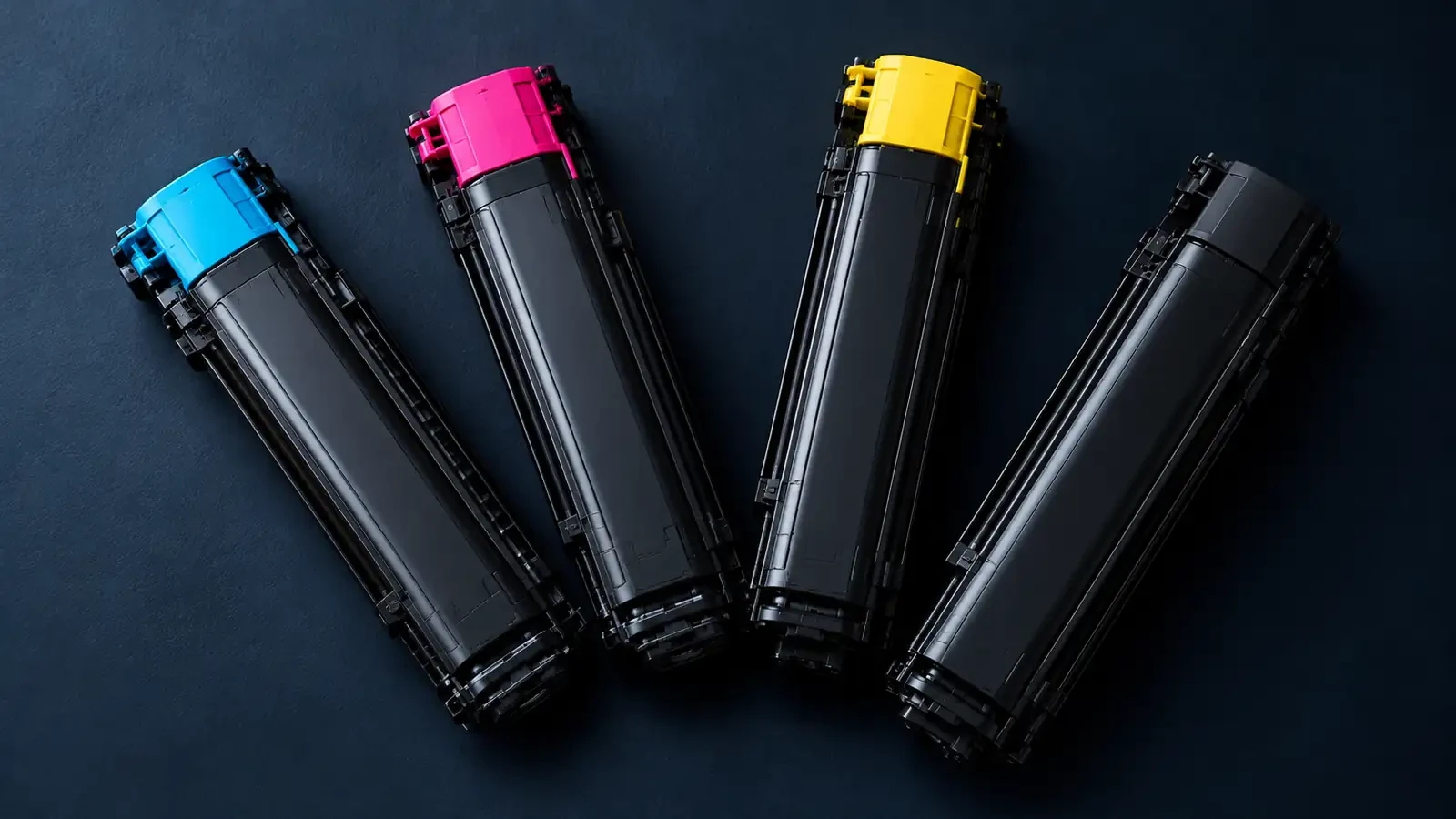
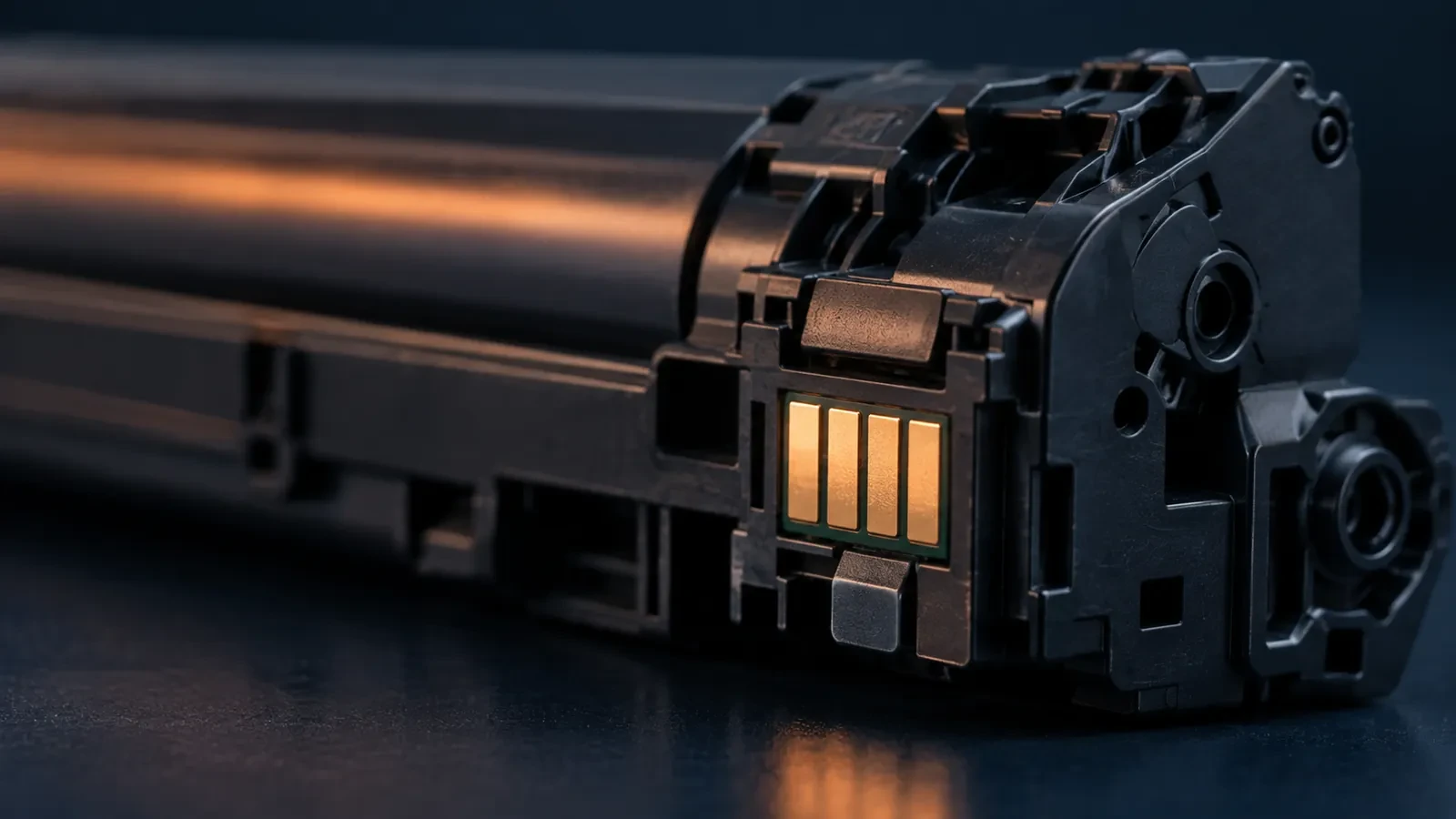
Almost every modern toner cartridge has a small chip. It tells the printer which cartridge is installed, its color and region, and how much toner has been used. Printer makers use the chip for practical reasons, such as showing toner level and preventing the wrong cartridge in the wrong slot, and for commercial reasons, such as encouraging the use of their own supplies.
When the printer reads a chip that does not carry the brand's own identification, it reacts in one of three ways, depending on the brand and model:
- Informs and continues: shows a message once, then prints normally.
- Asks for confirmation: you must press a key or confirm on the display before printing continues.
- Limits features: prints, but stops showing toner level or disables some warnings.
A few printers, after certain firmware updates, refuse some third-party chips outright. That is a different situation and is covered further down.
If you see a message, the first step is always to read it carefully and compare it with the table below.
Chip and toner messages: symptom → cause → what to do
| What the printer shows | Likely cause | What to do |
|---|---|---|
| “Non-genuine” or “unknown toner installed”, printing allowed after confirmation | The chip identifies a third-party cartridge | Confirm on the control panel as the manual describes; toner level may show as unknown |
| Toner level shows “?” or unknown | Third-party chip without level reporting, or a refilled cartridge | Keep printing; replace when print fades or the printer says empty |
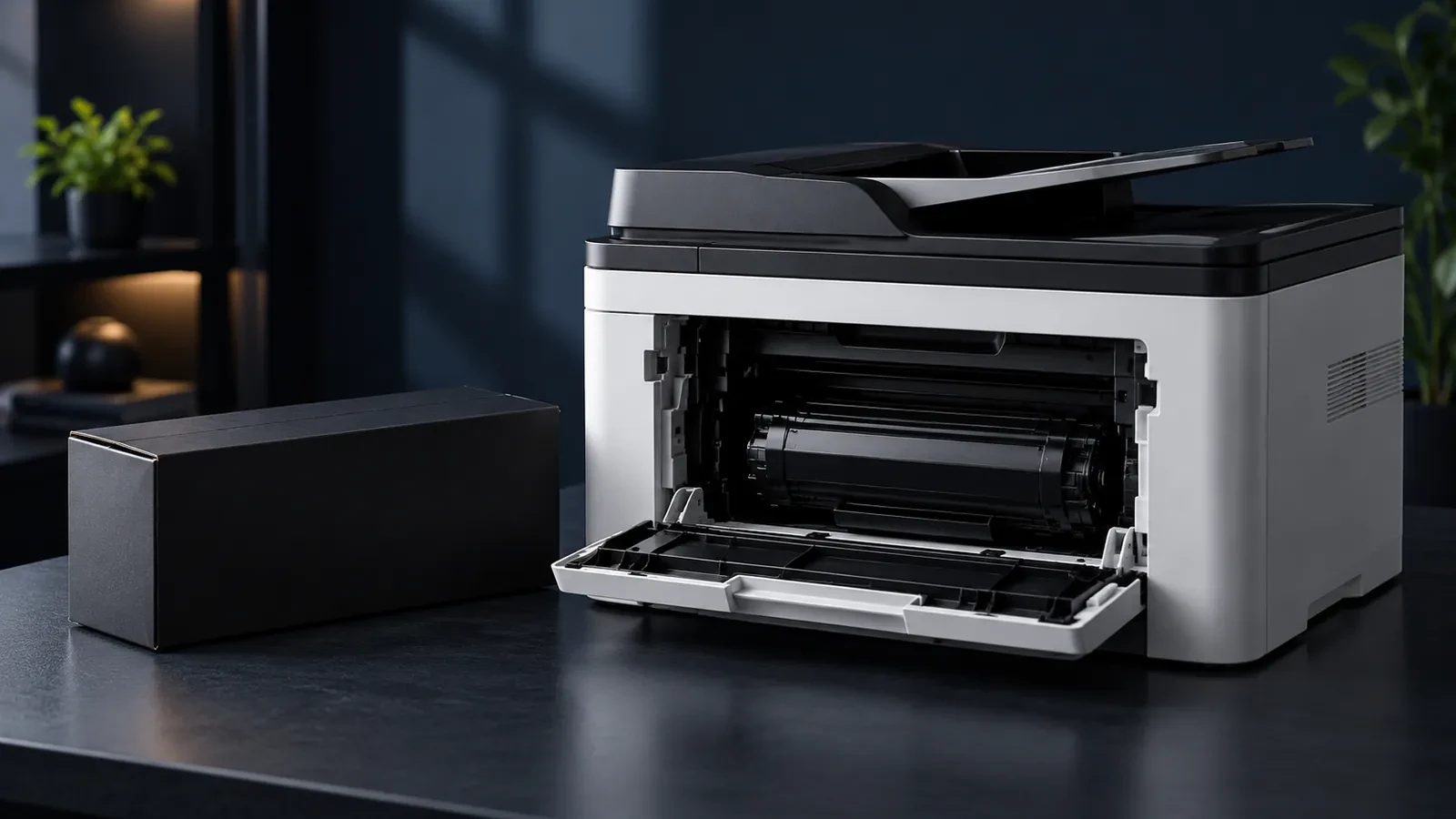
| “Cartridge not recognized” / “check toner” | Chip contacts dirty, chip loose, wrong regional version | Wipe contacts, reseat, check the region code on the box |
| “Used” or “empty” right after installing | Refilled cartridge with an old chip | Fit a new chip for that cartridge, or use a new cartridge |
| Worked last week, rejected after an update | Printer firmware changed how it checks chips | Ask the supplier for an updated chip; check firmware update settings |
| Error with a brand-new genuine cartridge | Faulty chip or printer contact problem | Try another cartridge; if it persists, service the printer |
Exact wording and options differ by model and firmware version. Follow your printer's user guide.
Kyocera: how to confirm and continue printing
Kyocera ECOSYS printers and multifunction devices are known for clear messages such as “Non-genuine toner” or “Unknown toner installed”, sometimes followed by a short code. The message appears because the toner container's chip is not a Kyocera chip. Kyocera states that it is not responsible for damage caused by non-genuine supplies, but the printer is designed to let the user continue.
On many models you continue by pressing and holding a key on the control panel for a few seconds, or by confirming on the touch screen. The exact key and timing depend on the model, so check the user guide for your device. After confirmation:
- printing continues as normal;
- the toner level indicator may show as unknown or may not decrease;
- the message may appear again each time a third-party container is installed.
Because Kyocera printers use a long-life drum that stays in the printer for a long time, toner quality is especially important: toner that scratches or films the drum shortens the life of an expensive part. Choose compatible toner made specifically for your TK code. You can find Kyocera-compatible toner on our Kyocera brand page.
Canon, Xerox, Sharp, Toshiba: chip messages explained
Canon
Canon printers and imageRUNNER devices may show that a non-Canon or non-genuine cartridge is installed, and some models stop showing the toner level for such cartridges. Canon also uses regional toner codes (for example NPG in parts of Asia, GPR in the Americas and C-EXV in Europe for copier toner), and a cartridge from another region may not be recognized at all. Matching the region code is usually the fix when a Canon device rejects a cartridge.
Xerox
Xerox devices identify their cartridges by chip and may report a non-Xerox cartridge. On some models, accepting non-Xerox supplies is controlled by a setting that an administrator can change. Xerox also produces region-specific (“metered” and “sold”) versions of some cartridges, which are not interchangeable. If a Xerox device rejects a cartridge, check the full part number, including any regional version, against the printer's supplies list.
Sharp and Toshiba
Sharp and Toshiba copiers read toner chips that include region information. A cartridge with a chip for another region typically causes a toner error rather than a “non-genuine” warning. Some service companies use chip resetters for these brands, but the reliable fix is a cartridge with the correct regional chip.
A note on firmware updates
Some printer makers have released firmware updates that change how chips are checked. After such an update, a cartridge that worked before can suddenly be rejected. If this happens across several printers at once, check whether firmware was updated automatically, and ask your supplier whether an updated chip is available. Our guide to firmware-proof procurement explains how fleets manage this risk.
Step-by-step check when a cartridge is refused
Before assuming the cartridge is incompatible, rule out the simple causes:
Step-by-step check when a cartridge is refused
- Read the exact message. Write down the wording. “Non-genuine” with an OK option is a warning; “not recognized” is a detection failure.
- Check the code and region. Compare the code on the box with the code in the printer's supplies menu, including any regional suffix.
- Remove all packing. Make sure tape, clips and any protective film over the chip are removed.
- Clean and reseat. Wipe the chip contacts and the printer's contact pins gently with a dry, lint-free cloth. Reseat firmly.
- Power cycle. Switch the printer off for a minute and on again so it re-reads the chip.
- Swap test. Try a second cartridge of the same type. If both fail, check the printer's firmware settings or contacts.
When the cartridge is to blame, and when the printer is
The swap test in the last step is the key. Its result tells you where to look:
- One cartridge fails, another of the same type works: the first cartridge's chip is faulty or damaged. Return it to the supplier.
- All third-party cartridges fail, genuine works: the printer's firmware or settings reject third-party chips. Ask your supplier for a chip version that supports your firmware, and review firmware update settings.
- All cartridges fail, including genuine: the printer has a contact, sensor or board problem. It needs service.
- Cartridges from one shipment fail, earlier ones worked: check the region code and chip version on the boxes; a different regional version may have been delivered.
Keeping a log of cartridge batch numbers and the printers they went into makes this analysis quick, especially in larger fleets. See our chip testing checklist for how distributors verify chips before shipments reach customers.
Is it safe to continue? Warranty and print quality
Warranty
In the United States, a manufacturer generally cannot void a printer's warranty only because third-party supplies were used. Many other markets have similar consumer protection. However, if a faulty cartridge damages the printer, the repair of that damage may not be covered. Service contracts for office fleets may also have their own supply rules. Our article on compatible toner and printer warranties goes into detail.
Print quality
The message itself does not affect print quality. What matters is the toner and the cartridge build. A good compatible cartridge prints as well as you expect from the printer; a poor one shows gray background, streaks or leaks regardless of what the chip says. Judge the cartridge by the pages it prints, not by the message.
Toner level
If the printer cannot read the toner level, it may not warn you before the cartridge runs out. Keep a spare cartridge for each printer that uses third-party supplies, and replace it when print starts to fade.
When the chip is the problem: reset vs new cartridge
Chips cause most compatibility problems, and there are three ways to deal with them:
- Reset the chip. Some chips can be reset or reprogrammed with special tools. This is common in refill workshops but is not possible for many current chips, which store usage permanently.
- Replace the chip. For refilled or remanufactured cartridges, fitting a new chip made for that cartridge and region is the standard fix.
- Use a cartridge with a current chip. For compatible cartridges, the supplier should provide chips tested against current firmware for each region. This is the most reliable option for offices and fleets.
Avoid unofficial firmware modifications or “chip bypass” tools found online. They can affect other printer functions, may void support, and can leave the printer unable to accept future updates.
Preventing chip problems in a fleet
- Record the region and firmware version of each printer model you support.
- Order cartridges by the full code, including the regional version.
- Control firmware updates: test them on one device before rolling out.
- Ask suppliers how they test chips and how quickly they respond to firmware changes.
- Keep a small stock of cartridges from an alternative chip version for critical printers.
Our article on what to do when compatible cartridges go unrecognized outlines a response plan for distributors and service providers.
Questions to ask your supplier about chips
Which regions does this chip support?
A cartridge sold for one region may not work in printers bought in another.
Which firmware versions have you tested?
A good supplier tracks firmware releases for the models it sells.
Does the chip report toner level?
Some compatible chips report level; others show “unknown”. Both can be acceptable, but users should know what to expect.
What happens after a firmware update?
Ask how quickly an updated chip becomes available and whether existing stock can be re-chipped.
How are chips tested before shipment?
Sample testing in real printers catches problems before cartridges reach customers.
How are failures handled?
Agree on a simple process for returns and replacement chips.
What the message does not mean
A non-genuine message is often misunderstood. It does not mean the cartridge is counterfeit, unsafe or of poor quality; it only means the chip is not the printer brand's own. Equally, a genuine chip does not guarantee good print quality if the cartridge has been stored badly or damaged. Treat the message as information about the cartridge's origin, and judge the cartridge by its print results and its supplier's testing.
Compatible cartridges with tested chips
UNICO supplies compatible toner for Canon, Xerox, Ricoh, Kyocera, Konica Minolta, Sharp and Toshiba devices. You can browse the UNICO catalog by printer model or OEM code, or start from the Xerox, Sharp or Toshiba brand pages. Dealers and service companies can discuss chip versions, regions and samples through our wholesale toner supply page.
FAQ
Is it safe to use non-genuine toner in Kyocera?
Yes, in the sense that the printer is designed to let you continue after confirming the message. Kyocera warns that it is not responsible for damage caused by non-Kyocera supplies, so quality matters: use compatible toner from a supplier that tests it for that model, and keep a record of which cartridge was installed if a problem occurs.
How do I bypass the non-genuine toner message?
You don't need to bypass it; on most printers you acknowledge it. Many Kyocera ECOSYS models let you continue by pressing and holding a control-panel key for a few seconds or by confirming on the display, as described in the user guide. Other brands usually show an OK or Continue option. Avoid unofficial firmware hacks, which can affect the printer's other functions.
Why does my printer reject a new compatible cartridge?
The most common causes are a regional mismatch between cartridge and printer, a chip that does not support the printer's current firmware, packing material left on the chip, or dirty contacts. Check the code and region first, then clean and reseat. If the cartridge still fails, ask the supplier for a replacement chip version.
Can a toner chip be reset?
Some chips can be reset or reprogrammed with special tools; many cannot, because they are designed to record usage permanently. For refilled cartridges, the usual fix is a new replacement chip made for that cartridge and printer region. For compatible cartridges, the supplier should provide a chip that works with current firmware.