
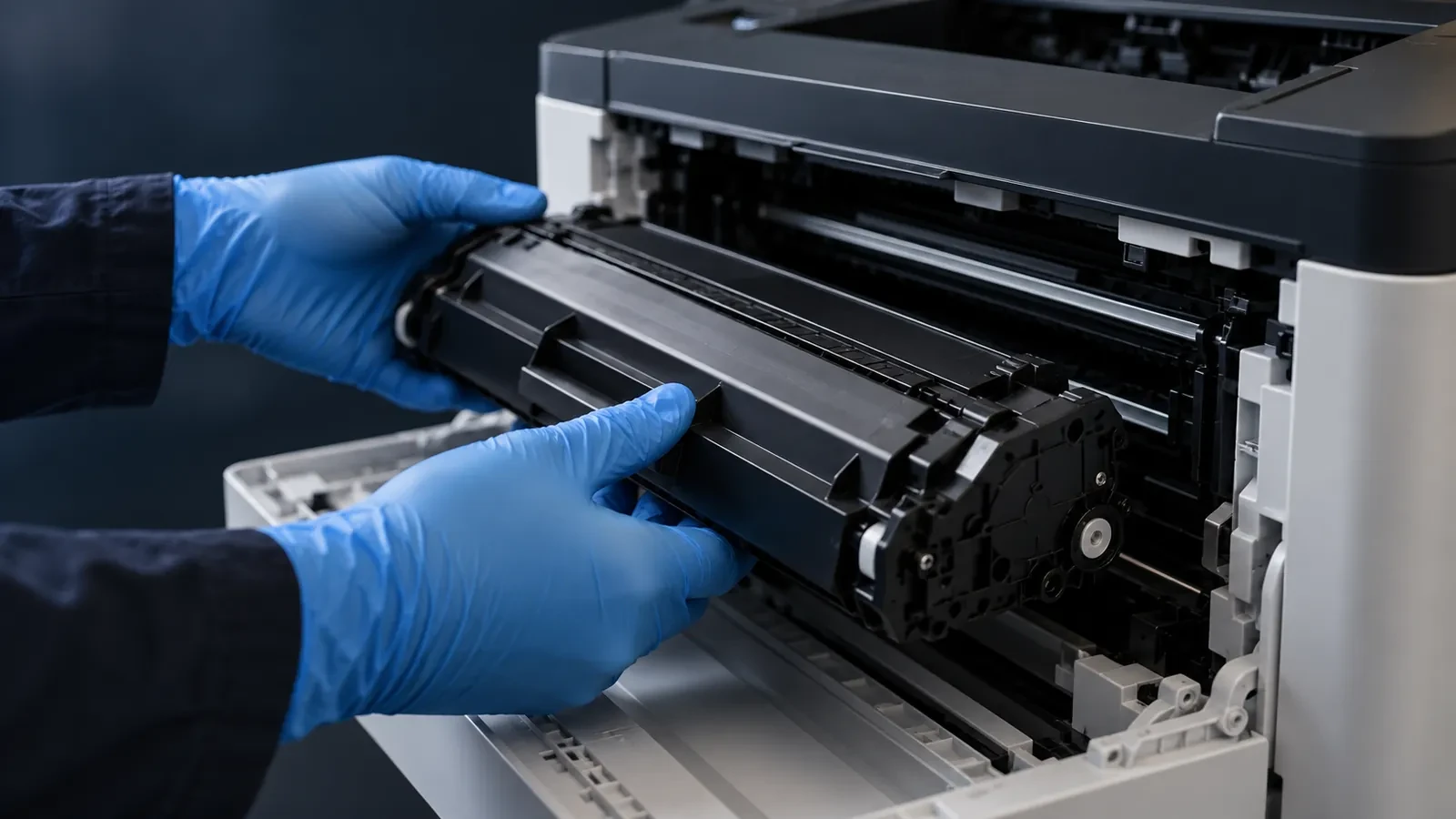
Short answer: confirm the cartridge code, open the printer, remove the old cartridge, unpack the new one and remove all tape and protective pieces, rock it gently to spread the toner, insert it until it clicks, close the cover and print a test page. On printers with a separate drum unit, the toner clicks into the drum, so you only swap the toner part.
Before you start: check the code and toner level
Most failed replacements are caused by the wrong cartridge or by changing toner too early. Two quick checks avoid both:
- Cartridge code. Find it in the printer's supplies menu, on a printed configuration page or on the label of the old cartridge. Many cartridges have different codes in different regions, so match the code, not just the printer model name.
- Real toner level. A “toner low” message often appears while hundreds of pages are still left. If print quality is fine, keep printing and have the new cartridge ready. Replace when the printer says toner is empty or print becomes faint.
Prepare the new cartridge near the printer, keep it in its bag until you need it, and lay a sheet of paper on the work surface in case a little toner falls out of the old one.
General 6-step toner replacement
- Confirm the cartridge code. Check the code in the printer's supplies menu or on the old cartridge, and make sure the new cartridge matches it.
- Open the printer and remove the old cartridge. Open the front or top cover. Pull the cartridge out gently by its handle; on some models release a lever first.
- Unpack the new cartridge. Remove the bag and all orange or colored packing pieces. Pull out the sealing tape if the cartridge has one.
- Rock it gently. Hold the cartridge level and rock it side to side five or six times to spread the toner evenly. Do not shake it hard.
- Insert and close. Slide the cartridge in along the guides until it clicks. Close the cover firmly.
- Print a test page. Wait for the printer to finish its startup cycle, then print a test or configuration page to check quality.
Never touch the drum surface (the green or blue roller) or the chip contacts on the cartridge. Fingerprints on the drum can cause spots, and dirt on the contacts can stop the printer recognizing the cartridge.
Brand notes: HP, Canon, Brother, Kyocera, Xerox, Ricoh, Konica Minolta
The general steps work everywhere, but each brand has its own details. These are the ones that cause the most questions:
Brand notes: what is different
| Brand | What to know |
|---|---|
| HP | Most desktop LaserJets use all-in-one cartridges with a pull tab or orange shipping clip. Some newer models have a separate imaging drum. |
| Canon | Desktop models usually take all-in-one cartridges; remove the orange protective cover and seal. imageRUNNER copiers use toner bottles or cartridges that twist or slide in. |
| Brother | The toner cartridge clicks into a separate drum unit. Push the green lever to release the old toner, and clean the corona wire with the green slider. |
| Kyocera | Most ECOSYS printers use a long-life drum, so you replace only the toner container. Unlock the lever, swap the container and shake the new one well before installing as the manual describes. |
| Xerox | Many models have separate toner and drum cartridges; color printers have one toner per color. The panel shows which color to replace. |
| Ricoh | Desktop printers often use all-in-one print cartridges; copiers use toner bottles that rotate in the machine. |
| Konica Minolta | bizhub copiers use TN-series toner cartridges that slide in and lock; imaging units are separate. |
Always follow the instructions printed inside the cartridge box or in the printer manual; they override general steps.
For brand-specific guides and compatible cartridges, see the Kyocera, Canon, Xerox and Ricoh brand pages.
Changing toner in a color printer
Color laser printers have four cartridges, one each for cyan, magenta, yellow and black, and they rarely run out together. The control panel tells you which color needs replacing; only change that one. Each slot is keyed to its color, so a cartridge will not fit the wrong position.
On some models the cartridges sit in a drawer that slides out, and on others each color has its own door. After replacement, many color printers run a short calibration, which is normal and takes a minute or two. If colors look wrong afterwards, run the printer's color calibration from the menu before you suspect the new cartridge.
A practical tip for offices: keep at least a spare black cartridge for every color printer. Black is used on almost every page and is the color most likely to stop the printer at a busy moment.
Copier toner bottles vs cartridges
Office copiers and large multifunction printers often use toner bottles or long toner cartridges instead of the compact cartridges in desktop printers. A bottle only supplies toner; the drum and developer stay in the machine. Replacing a bottle usually means opening the front cover, turning or sliding the old bottle out, shaking the new bottle as instructed on the label, removing its cap and pushing it into place. Keep the bottle horizontal while you remove the old one, as some toner remains inside. On many copiers you replace the waste toner container at the same time or soon after; see our guide to the waste toner side of copier maintenance.
After replacement: printer says toner low or not recognized
If the printer does not accept the new cartridge or still reports low toner, work through this table before contacting support:
After replacement: toner low or not recognized
| Problem | Likely cause | Fix |
|---|---|---|
| Still says toner low | Old cartridge still selected, counter not updated, or cartridge not fully seated | Reseat the cartridge, power cycle, and reset the counter if the manual requires it |
| Cartridge not recognized | Protective tape or clip left on; chip contacts dirty or covered | Remove all packing; wipe the chip contacts gently with a dry cloth |
| Faint or blank print | Sealing tape not removed; toner not distributed | Pull the seal; rock the cartridge and reinstall |
| Non-genuine or unknown cartridge message | The printer detects a third-party chip | Confirm the message on the panel if your printer allows; check the cartridge is the right regional version |
If you use compatible cartridges and the printer shows a message about non-genuine or unknown supplies, it usually means the printer has detected a third-party chip. Many printers let you confirm the message and continue. Our article on compatible cartridges that go unrecognized explains the causes and fixes in more detail.
Safety tips
- Switch the printer off before reaching deep inside, and let it cool: the fuser area gets very hot.
- Keep the drum out of bright light and away from fingers.
- If toner spills, wipe it with a damp, cool cloth. Do not use a household vacuum, and do not use hot water on skin or clothing.
- Keep new cartridges at room temperature before installing, especially after cold transport, to avoid condensation.
What to do with the old cartridge
Put the old cartridge in the bag from the new one, close it, and return it through a recycling route: the manufacturer's take-back program, a store drop-off or your supplier. Do not throw cartridges into a fire. Our guide to recycling toner cartridges lists the main options.
Keeping spare toner ready
In an office, the best time to order toner is when the first “toner low” warning appears. Keep one spare cartridge per printer model, stored sealed and flat. You can find compatible toner cartridges for Canon, Xerox, Ricoh, Kyocera, Konica Minolta, Sharp and Toshiba printers in the UNICO catalog. For fleet and dealer supply, see our wholesale toner supply page.
FAQ
Do I need to remove the seal from a new toner cartridge?
Yes, if the cartridge has one. Many cartridges have a sealing strip or tape that keeps toner in the hopper during shipping, plus orange or colored protective pieces. Remove all of them before installing, or the printer will print blank or faint pages, or may not recognize the cartridge.
Why does my printer still say toner low after replacing?
Usually the cartridge is not fully seated, the printer has not refreshed its status, or the page counter needs a reset on that model. Reseat the cartridge, switch the printer off and on, and check the manual for a counter reset. If the message stays, check that you installed the correct cartridge for your printer and region.
How do I check toner level?
Most printers show toner level on the control panel, on a printed configuration or supplies status page, or in the printer's web page or driver software. The reading is an estimate based on page counts or sensors, so treat it as a guide and keep a spare cartridge when it drops low.
Should I shake a new toner cartridge?
Rock it gently, don't shake it hard. Holding the cartridge level and tilting it from side to side spreads the toner evenly. Hard shaking can force toner past the seals and cause leaks. Some copier toner bottles need more vigorous shaking; follow the instructions on the box.